Everything texspark does, in the order that matters
Multi-File · Build · SyncTeX · Editor · AI Agent · Workspace · Compare
Multi-File Projects
Set main.tex once. Build it forever.
A thesis is never one file. It’s a main.tex and a folder of chapters — and most editors make you re-declare which file is the “real” one, session after session. texspark asks once. Mark your project root as the build target (⌘⇧P) and it gets a 🔨 in the tab bar. From then on, ⌘B compiles the right file no matter which chapter you’re editing. Open a sub-file first? ⌘-click into it from the PDF and its parent becomes the build target automatically.

The outline reads the build target and follows every \input / \include recursively — one tree, in true document order, including chapters you’ve never opened. It tracks unsaved edits live. Click a section in chapter 4 and the right file opens at the right line.
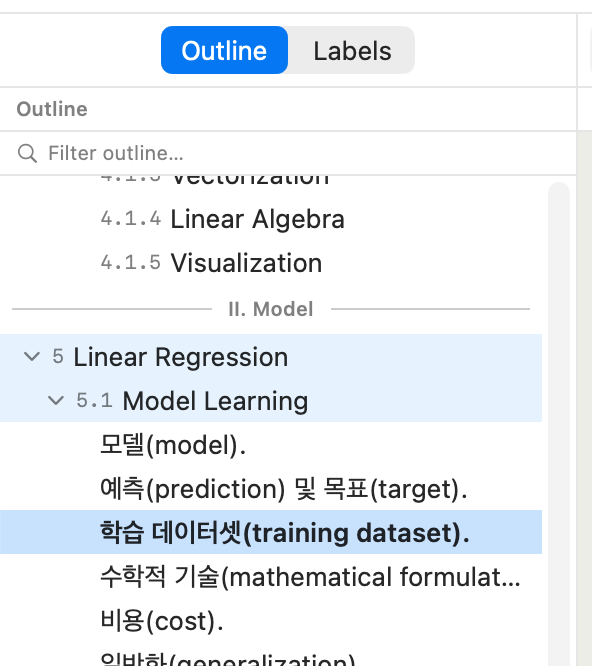
No other desktop LaTeX editor combines the persistent build target, the recursive outline, and cross-file SyncTeX. This is why texspark exists.
Build Pipeline
Your pipeline, ⌘B away
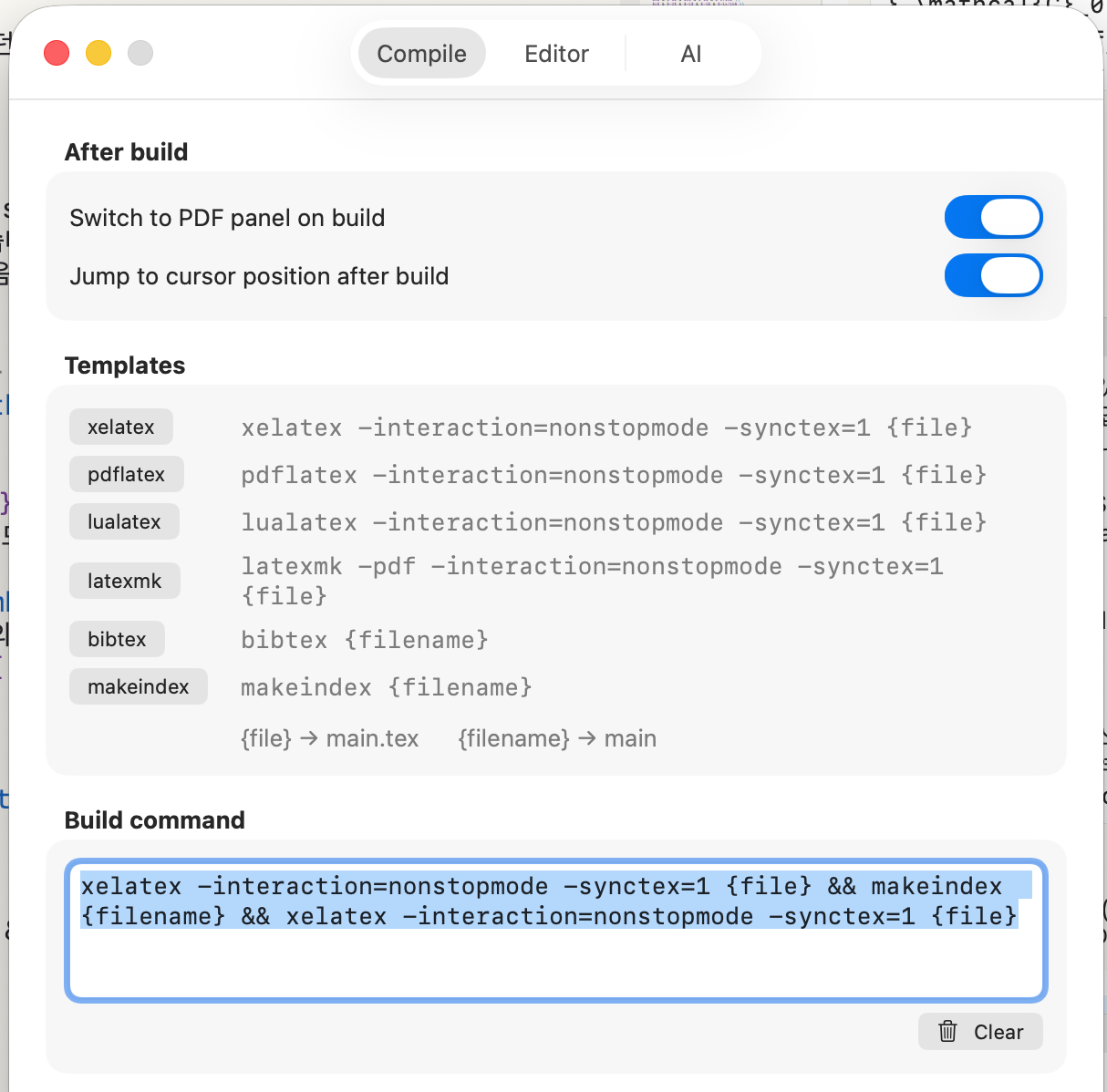
Templates fill in xelatex, pdflatex, lualatex, latexmk, BibTeX, or makeindex with one click — but they only fill the box, never lock it. The command line is yours: chain passes with && (xelatex && makeindex && xelatex), or type any shell pipeline your project needs. ⌘B runs the sequence, the log streams under the editor, and the PDF lands on the right.
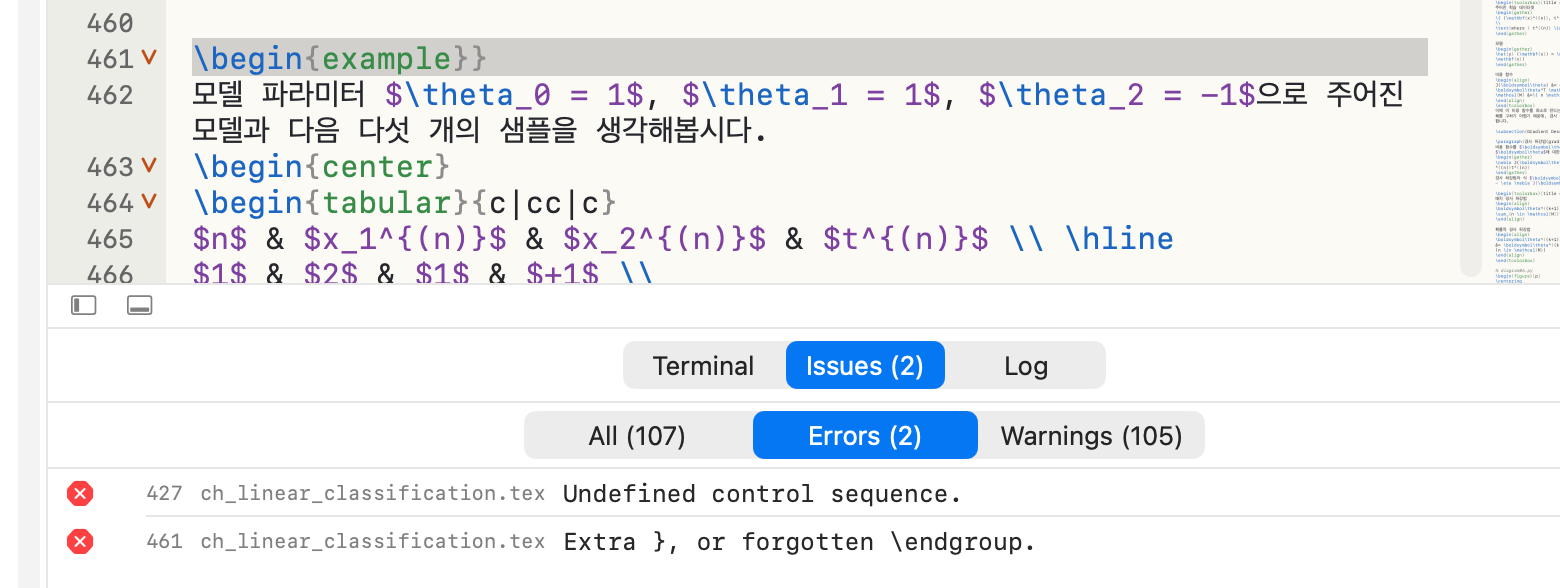
When something breaks, the Issues list collects every error and warning — click one and the editor jumps to the offending line, in the right sub-file. The build target is flushed to disk before every run, so what compiles is always what you see.
SyncTeX
Click here. Land there.
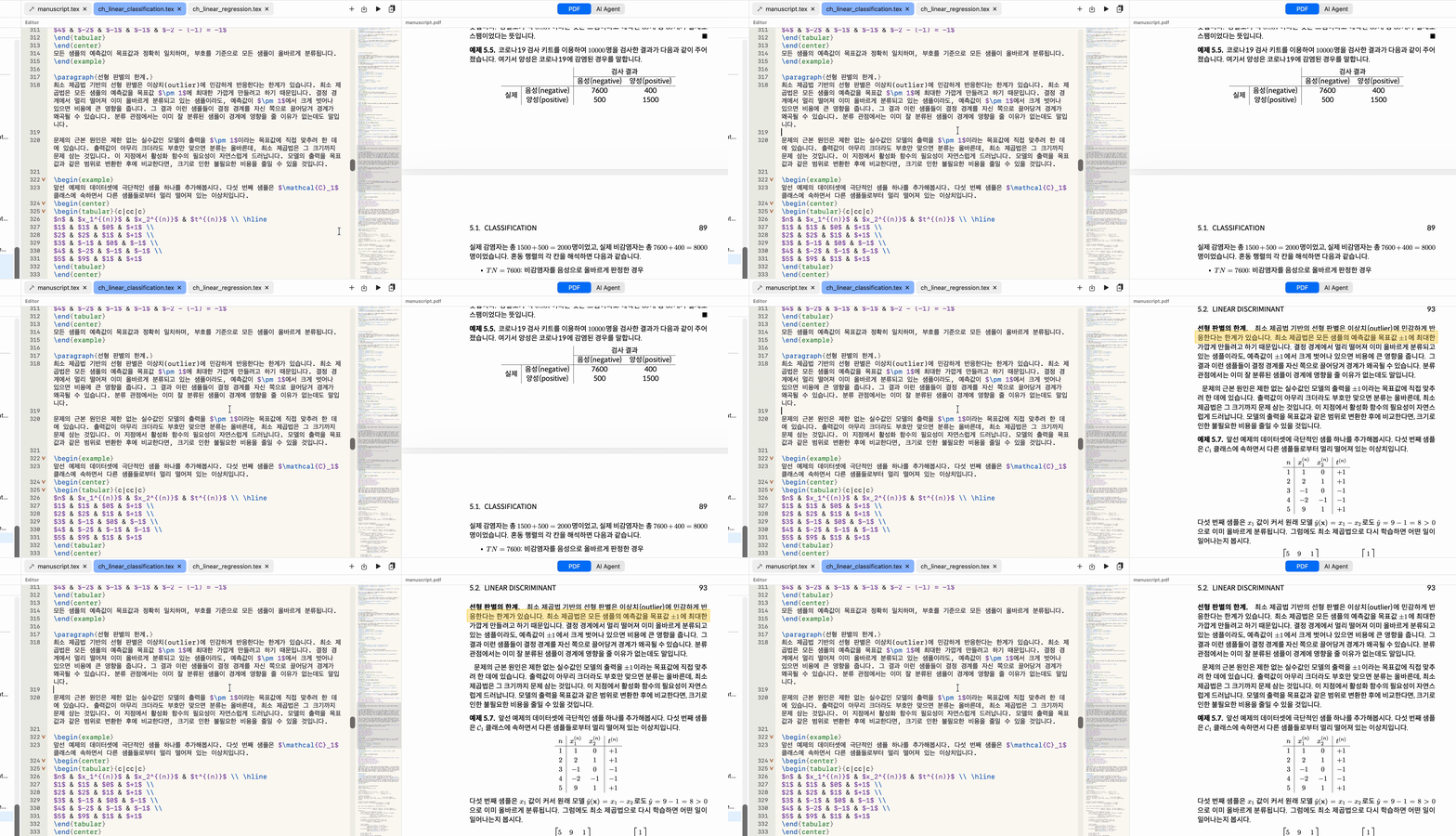
⌘⇧↩ scrolls the PDF to your cursor’s line and marks it with a yellow pulse, so your eye lands with the jump. ⌘-click anywhere in the PDF and the editor opens the matching source line — even when it lives three \includes deep. Rebuild a 300-page book and the PDF stays exactly where you were; multi-pass builds don’t snap you back to page one.
Editor
Native to the last keystroke
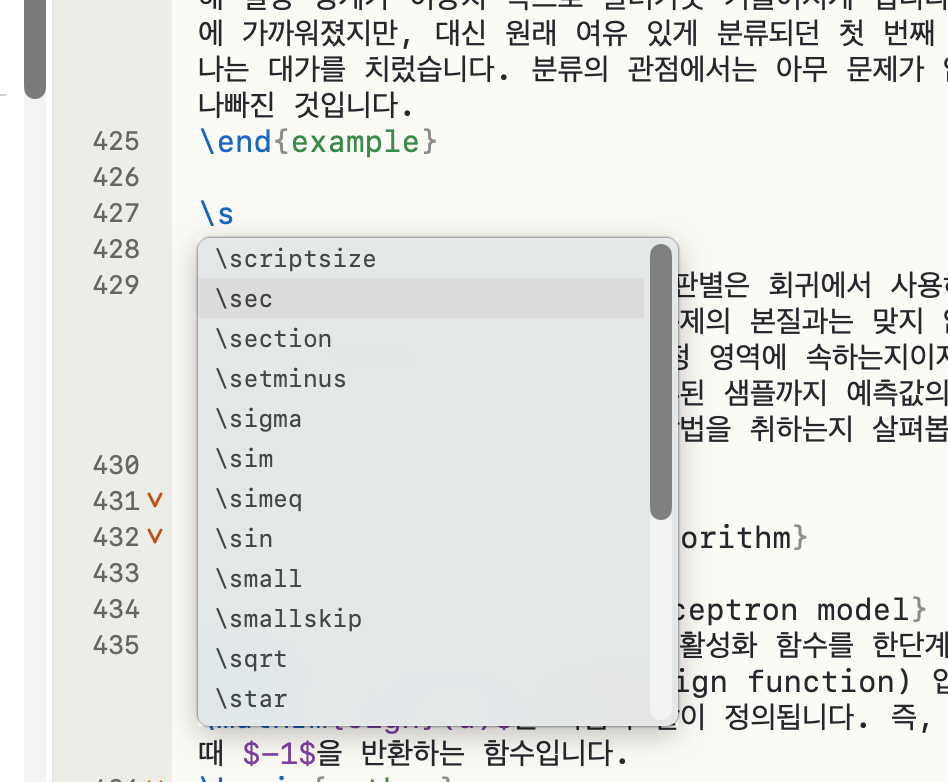
Every character goes through Apple’s text engine — the same one in Notes, Pages, and Xcode. Composition input for Korean and Japanese, system dictation, and the macOS Find bar all behave exactly as they do everywhere else on your Mac. On top of that: LaTeX-aware highlighting, and autocompletion that pops when you type a backslash — Tab to insert, Esc to dismiss, never interrupting composition.
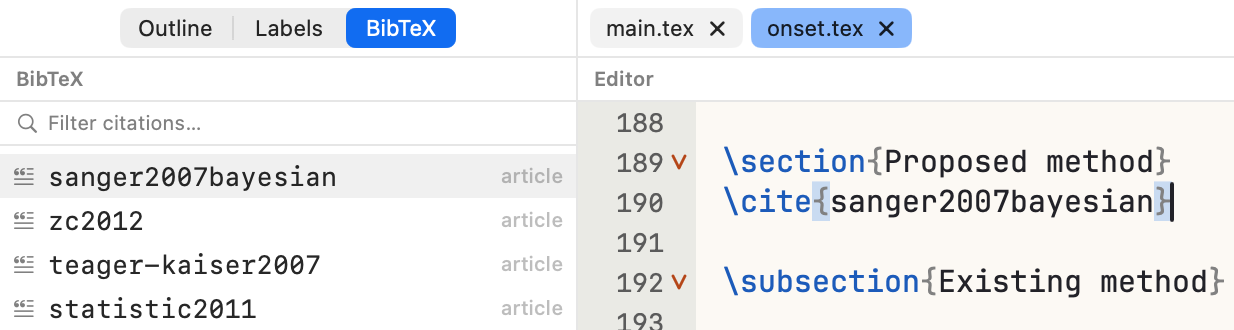
BibTeX built in. A sidebar tab lists every entry from the .bib files your project references — found across the whole include tree. Click to insert a \cite{}, double-click to jump to the entry. \cite{ autocompletes inline with the same keys.
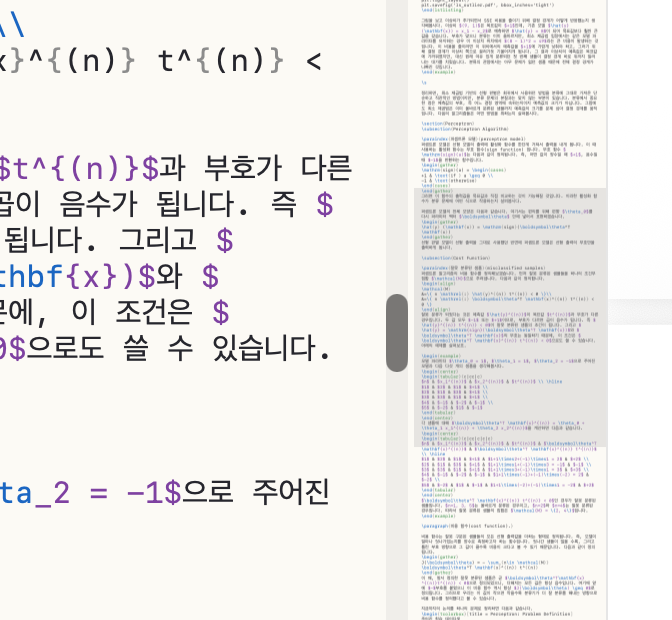
Fold, match, navigate. Collapse sections and environments you’re not working on. Brackets and \begin/\end pairs light up as your cursor passes — nesting included, escaped braces ignored. And the minimap gives a 2,000-line chapter a bird’s-eye view; no other desktop LaTeX editor has one.
AI Agent
An AI that’s already read your file
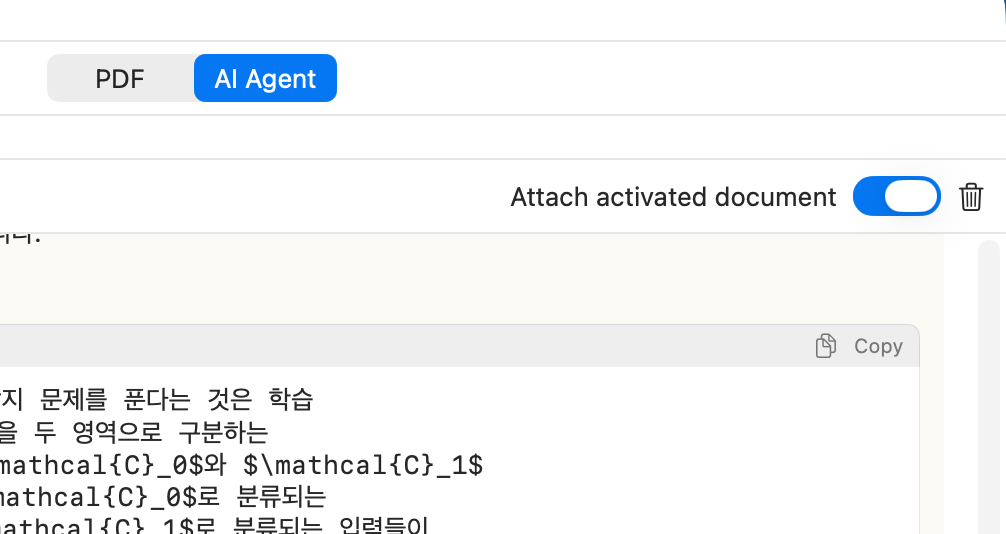
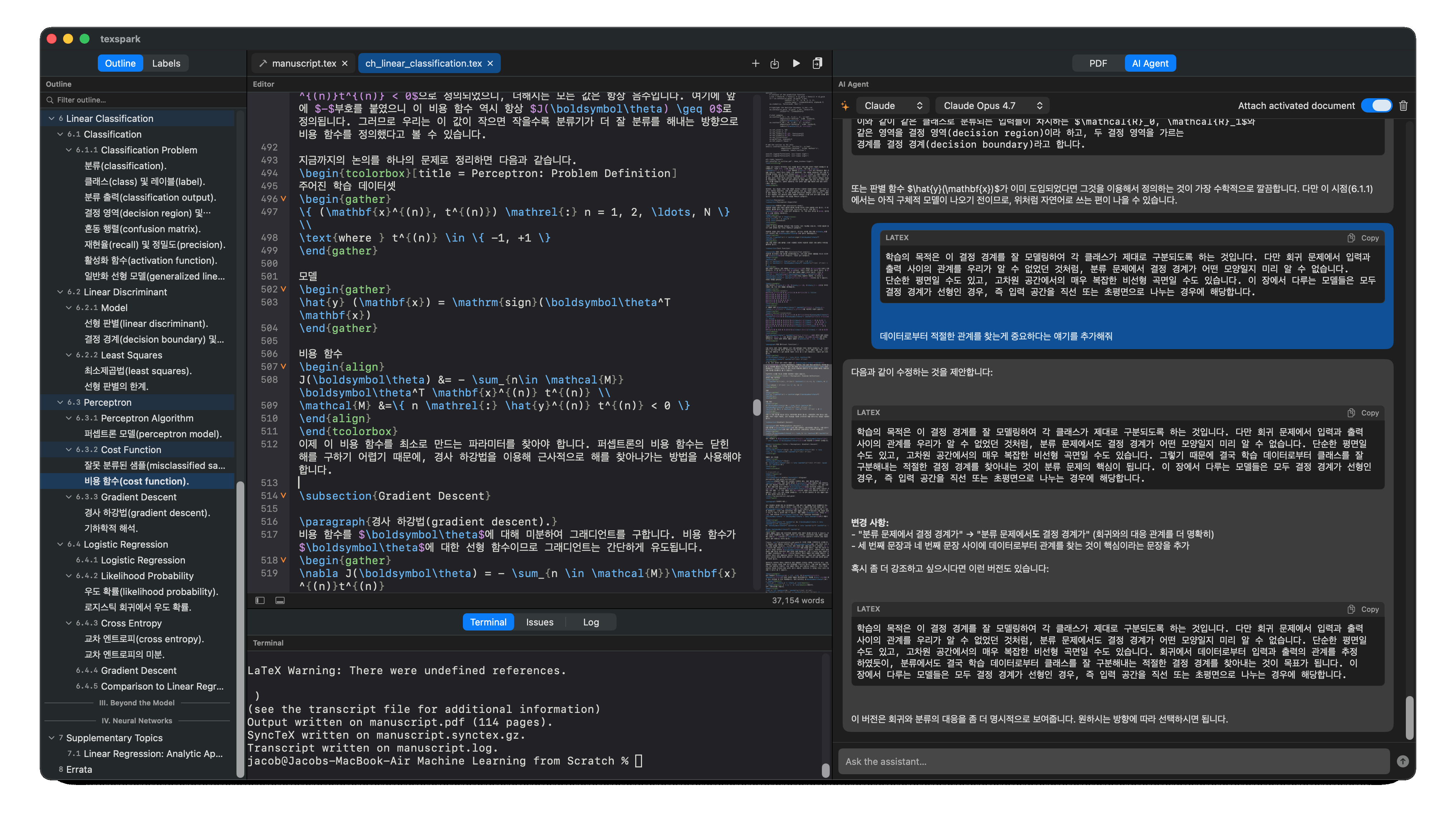
⌘T flips the PDF panel to a chat with Claude, ChatGPT, or Gemini — pick the provider and model from the header. One toggle attaches your source as context: ask about an error, have a paragraph rewritten, generate a table, and paste the answer back. Your API key lives in the macOS Keychain and goes nowhere except the provider you chose.
Workspace
A session that returns exactly where you left it
Relaunch and everything comes back: tabs in order, the 🔨 still on the build target, every cursor and scroll position intact. Light, dark, and system appearance switch the editor, gutter, minimap, and terminal together. Your favorite monospaced font, via the full macOS font picker.
See how it stacks up
texspark against the editors you already know
| texspark us | Texmaker | TeXstudio | Overleaf | VS Code | Texifier | |
|---|---|---|---|---|---|---|
| General | ||||||
| Platform | macOS native | Cross-platform | Cross-platform | Web | Cross-platform | macOS / iOS |
| Price | One-time | Free | Free | Subscription | Free | One-time |
| Editor | ||||||
| PDF preview | ✓ | ✓ | ✓ | ✓ | ✓ | ✓ |
| SyncTeX | ✓ | ✓ | ✓ | — | ✓ | ✓ |
| Minimap | ✓ | — | — | — | ✓ | — |
| AI assistant | ✓ | — | — | Limited | Extension | — |
| Custom build | ✓ | Limited | Limited | — | Config | Scripts |
| Multi-file project | ||||||
| Multi-file | ✓ | ✓ | ✓ | ✓ | ✓ | ✓ |
| Recursive outline | ✓ | — | — | — | — | ✓ |
| SyncTeX (multi) | ✓ | Partial | Partial | — | Partial | ✓ |
| Build target | ✓ | Manual | Manual | — | — | — |
| Auto-detect target | ✓ | — | — | — | — | — |
Overleaf AI is usage-limited on paid plans. VS Code AI requires GitHub Copilot or a similar extension.